Connect an AI agent to your ClickHouse server with edb-clickhouse-mcp to list databases, describe schemas, and run queries in response to plain-language questions instead of requiring hand-written SQL.
edb-clickhouse-mcp is EDB's packaging of the open-source ClickHouse MCP server for Model Context Protocol (MCP), an open standard that lets AI agents call external tools over a common interface. EDB provides RPM, DEB, and container packaging, and a set of opt-in diagnostic tools covered in Understanding the available tools.
Before you start
This page assumes you already have an MCP-compatible AI client, such as Claude Desktop, Claude Code, or Cursor.
Understanding the integration
Three separate pieces come together to answer a natural-language question against ClickHouse, and each one can run on its own machine and its own platform:
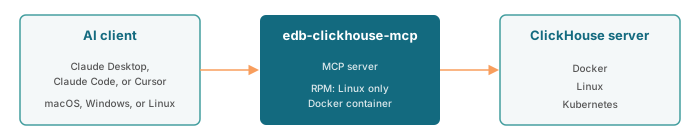
- AI client: Claude Desktop, Claude Code, Cursor, or another MCP-compatible client, running on macOS, Windows, or Linux. Configure it in the client's own configuration file, covered in Connecting an AI client.
edb-clickhouse-mcp: the RPM package on a RHEL-compatible Linux host, the DEB package on a Debian 13 host, or the container image on macOS, Windows, or Linux. Configure it inmcp.envfor the packages, or with environment variables for the container, covered in Configuration parameters.- ClickHouse server: wherever your ClickHouse cluster or node already runs, in Docker, on Linux, or on Kubernetes. Set it up as described in Installing and upgrading.
Setup workflow
Work through these steps in order:
- Install
edb-clickhouse-mcpas an RPM package, a DEB package, or a container image, on whichever machine you want it to run, not necessarily the same one as your ClickHouse server. - Edit
edb-clickhouse-mcp's configuration to point it at your ClickHouse server and give it credentials to authenticate. - Review the available tools it registers, and turn on the EDB diagnostic tools if you want them.
- Connect your AI client to
edb-clickhouse-mcp. - Ask it a question in natural language.
Installing edb-clickhouse-mcp
Install edb-clickhouse-mcp as an RPM package, a DEB package, or a container image, all available for x86_64 and aarch64 (amd64 and arm64 for the DEB package). Install it on whichever machine you want the MCP server to run on, as long as it can reach your ClickHouse node over the network. edb-clickhouse-mcp connects to a single ClickHouse endpoint, not a cluster as a whole, as described in Configuration parameters.
Installing the RPM or DEB package
The RPM package requires a RHEL-compatible Linux host, and the DEB package requires a Debian 13 host.
Set up the EDB repository and install the package, using the same
clickhousesubscription plan as the ClickHouse server and client packages:export EDB_SUBSCRIPTION_TOKEN=<your-token> export EDB_SUBSCRIPTION_PLAN=clickhouse curl -1sSLf "https://downloads.enterprisedb.com/$EDB_SUBSCRIPTION_TOKEN/$EDB_SUBSCRIPTION_PLAN/setup.rpm.sh" | sudo -E bash sudo dnf install -y edb-clickhouse-mcp
export EDB_SUBSCRIPTION_TOKEN=<your-token>
export EDB_SUBSCRIPTION_PLAN=clickhouse
curl -1sSLf "https://downloads.enterprisedb.com/$EDB_SUBSCRIPTION_TOKEN/$EDB_SUBSCRIPTION_PLAN/setup.deb.sh" | sudo -E bash
sudo apt-get install -y edb-clickhouse-mcp
Replace
<your-token>with the token you received when you registered for the EDB subscription. This command installs a self-contained virtual environment under/opt/edb/clickhouse-mcp, withedb-clickhouse-mcpas the only command added toPATH, and connection settings in/etc/edb-clickhouse-mcp/mcp.env.Point it at your ClickHouse node. Edit
/etc/edb-clickhouse-mcp/mcp.envand set at leastCLICKHOUSE_HOST,CLICKHOUSE_USER, andCLICKHOUSE_PASSWORD, described in Configuration parameters.
Installing the container image
This image runs on macOS, Windows, or Linux, through Docker or Podman.
Log in to the EDB container registry and pull the image, using the same
clickhouserepository as the ClickHouse server image:export EDB_SUBSCRIPTION_TOKEN=<your-token> echo "$EDB_SUBSCRIPTION_TOKEN" | docker login docker.enterprisedb.com \ --username clickhouse \ --password-stdin docker pull docker.enterprisedb.com/clickhouse/edb-clickhouse-mcp:0.4.1-1edb1
Replace
<your-token>with the token you received when you registered for the EDB subscription.Run it:
docker run --rm -i \
  -e CLICKHOUSE_HOST=<clickhouse-host> \
  -e CLICKHOUSE_USER=<clickhouse-user> \
  -e CLICKHOUSE_PASSWORD=<clickhouse-password> \
  docker.enterprisedb.com/clickhouse/edb-clickhouse-mcp:0.4.1-1edb1
Where
<clickhouse-host>,<clickhouse-user>, and<clickhouse-password>are your ClickHouse connection details, described in Configuration parameters.
Configuration parameters
These parameters configure the connection to your ClickHouse server, set either in /etc/edb-clickhouse-mcp/mcp.env for the RPM or DEB package, or passed directly to the container:
| Variable | Required | Description |
|---|---|---|
CLICKHOUSE_HOST | Yes | Hostname of your ClickHouse server. |
CLICKHOUSE_USER | Yes | Username for authentication. Grant this user only the privileges the agent needs, and avoid a default or administrative user. |
CLICKHOUSE_PASSWORD | Yes | Password for authentication. |
CLICKHOUSE_PORT | No | Defaults to 8443 when CLICKHOUSE_SECURE is true, 8123 otherwise. |
CLICKHOUSE_DATABASE | No | Default database to connect to. |
CLICKHOUSE_SECURE | No | Enables HTTPS. Defaults to true. |
CLICKHOUSE_ROLE | No | Role to use for authentication, if your user requires one. |
CLICKHOUSE_ALLOW_WRITE_ACCESS | No | Allows structure and data changes (DDL and DML statements). Defaults to false, so queries are read-only. |
CLICKHOUSE_ALLOW_DROP | No | Allows destructive operations (DROP TABLE, DROP DATABASE, DROP VIEW, DROP DICTIONARY, TRUNCATE TABLE), on top of CLICKHOUSE_ALLOW_WRITE_ACCESS. Defaults to false. |
Secret values, such as CLICKHOUSE_PASSWORD, and common key=value secret patterns are redacted from every tool's output and error messages before they reach the client or the logs.
Connecting to a cluster node
edb-clickhouse-mcp connects to one ClickHouse endpoint, set by CLICKHOUSE_HOST. On a multi-node cluster, edb_cluster_health and the other EDB diagnostic tools report on that node only, not the whole cluster.
Applying configuration changes
Restart edb-clickhouse-mcp after changing any of these variables, or any of the diagnostic tool settings in Tuning the diagnostic tools, since it only reads them at startup. For the RPM or DEB package, run sudo systemctl restart edb-clickhouse-mcp. For the container, the client launches a fresh container each time it connects, so edit the environment variables in your AI client's own configuration file and restart the client to apply them.
Understanding the available tools
Review the tools edb-clickhouse-mcp registers before connecting your AI client, so you know what an agent can do once it's connected. When a client connects, it discovers the names and descriptions of the tools already registered, and the AI model behind it uses that information to decide when to call each one.
Default tools
These four tools register by default, regardless of whether the server is installed from a package or the container image:
| Tool | Description |
|---|---|
run_query | Runs a SQL query against your ClickHouse server. Read-only unless write access is explicitly enabled. |
list_databases | Lists all databases on the server. |
list_tables | Lists tables in a database, with filtering and pagination. |
edb_version | Reports the EDB build identity as <package version>+<edb release>. |
EDB diagnostic tools
Set EDB_MCP_ENABLED=true, either in /etc/edb-clickhouse-mcp/mcp.env for the RPM or DEB package, or passed directly to the container, to register four additional read-only tools that give an agent operational visibility into the server beyond running queries:
| Tool | Description |
|---|---|
edb_cluster_health | Server version, uptime, database count, a sample of running queries, per-disk free space, and replication delay. |
edb_system_table_snapshot | Every column of one allowlisted system table, such as settings, metrics, or replication_queue, for information the health snapshot doesn't cover. |
edb_query_stats | Aggregated statistics from system.query_log over a trailing window: completed and failed counts, duration percentiles, rows and bytes read, and a per-user breakdown. Never returns query text. |
edb_resource_metrics | Aggregated resource usage from system.metric_log over a trailing window: concurrent queries, memory, CPU time, and disk I/O. |
Tuning the diagnostic tools
Set these variables the same way as the connection settings, either in mcp.env for the RPM or DEB package, or passed directly to the container. Restart edb-clickhouse-mcp to apply changes, as described in Configuration parameters.
| Variable | Default | Description |
|---|---|---|
EDB_MCP_ENABLED | false | Toggle for the EDB diagnostic tools. |
EDB_HEALTH_MAX_QUERIES | 50 | Running queries sampled per edb_cluster_health call, from 1 to 1000. |
EDB_HEALTH_INCLUDE_QUERY_TEXT | false | SQL text of running queries in the health snapshot. Query text can carry sensitive values, so it stays off unless you opt in. |
EDB_SNAPSHOT_MAX_ROWS | 200 | Row cap for edb_system_table_snapshot, from 1 to 10000. |
EDB_METRICS_WINDOW_MINUTES | 15 | Trailing window for edb_query_stats and edb_resource_metrics, from 1 to 1440 minutes. A wider window costs a larger scan. |
EDB_METRICS_BREAKDOWN_ROWS | 10 | Cap on the error and per-user breakdown lists in edb_query_stats, from 1 to 100. |
Connecting an AI client
Connect your AI client to edb-clickhouse-mcp so it can call the tools registered on it. Where the client runs relative to edb-clickhouse-mcp, same machine or different, determines the transport, client configuration, and authentication, as shown here:
| Same machine | Different machine | |
|---|---|---|
| Transport | stdio (default) | http or sse |
| Client configuration | Launches edb-clickhouse-mcp as a subprocess | Connects to a URL over the network |
| Authentication | None needed | Required |
Setting up the remote server
If edb-clickhouse-mcp runs on a different machine than your AI client, configure it for network access first, then pick Connect to a remote server in Editing the Claude Desktop configuration. If it runs on the same machine as the client, skip this section.
Set the following, either in /etc/edb-clickhouse-mcp/mcp.env for the RPM or DEB package, or passed directly to the container:
Set
CLICKHOUSE_MCP_SERVER_TRANSPORTtohttporsse, andCLICKHOUSE_MCP_BIND_HOST=0.0.0.0.CLICKHOUSE_MCP_BIND_HOSTotherwise defaults to127.0.0.1and only accepts connections from the same host.Set up authentication. Startup fails without it, for both transports. Pick one mode:
Mode Setting When to use Static bearer token CLICKHOUSE_MCP_AUTH_TOKENSimple or internal deployments. Generate a token with uuidgenoropenssl rand -hex 32.OAuth / OpenID Connect (OIDC) FASTMCP_SERVER_AUTHplus provider-specificFASTMCP_SERVER_AUTH_*variablesProduction deployments behind Azure Entra, Google, GitHub, WorkOS, or another FastMCP-supported provider. Disabled CLICKHOUSE_MCP_AUTH_DISABLED=trueLocal development only. Avoid disabling authentication on a server reachable over a network. Start
edb-clickhouse-mcp. For the RPM or DEB package, start the packaged systemd service:sudo systemctl enable --now edb-clickhouse-mcp
For the container, pass the settings from the previous two steps as
-eflags, map the bind port, and run it detached:docker run -d \ -p 8000:8000 \ -e CLICKHOUSE_MCP_SERVER_TRANSPORT=http \ -e CLICKHOUSE_MCP_BIND_HOST=0.0.0.0 \ -e CLICKHOUSE_MCP_AUTH_TOKEN=<token> \ -e CLICKHOUSE_HOST=<clickhouse-host> \ -e CLICKHOUSE_USER=<clickhouse-user> \ -e CLICKHOUSE_PASSWORD=<clickhouse-password> \ docker.enterprisedb.com/clickhouse/edb-clickhouse-mcp:0.4.1-1edb1
Also open the corresponding inbound rule for the bind port, such as an EC2 security group or other cloud firewall rule, or your network firewall otherwise.
Check the unauthenticated
/healthendpoint, which reports server and connectivity status for load balancers and orchestrator probes:curl http://<mcp-host>:8000/health
It returns
200 OKwhen the server can reach ClickHouse, and503otherwise, without version or error details in the body.
Editing the Claude Desktop configuration
The following steps use Claude Desktop as an example. Other MCP-compatible clients, such as Claude Code or Cursor, need the same configuration, added to their own configuration file instead.
Open Settings > Developer > Edit Config in Claude Desktop to reach
claude_desktop_config.jsondirectly:- macOS:
~/Library/Application Support/Claude/claude_desktop_config.json - Windows:
%APPDATA%/Claude/claude_desktop_config.json
- macOS:
Add one of the following configurations to its
mcpServersobject, alongside any servers already listed there, rather than replacing the file. Pick the one that matches your setup.Tip
Wherever a configuration uses
"command": "docker", replace"docker"with its full path if Claude Desktop can't find it, since it doesn't always inherit your shell'sPATH.Point at your own ClickHouse server: launches
edb-clickhouse-mcpas a subprocess on the same machine as the client, overstdio, pointed at your ClickHouse instance. This setup covers the everyday case for a laptop or workstation running both the client and the server. The command depends on how you installededb-clickhouse-mcp:If you installed the RPM or DEB package, on a Linux host:
{
  "mcpServers": {
    "clickhouse": {
      "command": "/usr/bin/edb-clickhouse-mcp",
      "env": {
        "CLICKHOUSE_HOST": "<clickhouse-host>",
        "CLICKHOUSE_USER": "<clickhouse-user>",
        "CLICKHOUSE_PASSWORD": "<clickhouse-password>"
      }
    }
  }
}
If you installed the Docker container image:
{
  "mcpServers": {
    "clickhouse": {
      "command": "docker",
      "args": [
        "run", "--rm", "-i",
        "-e", "CLICKHOUSE_HOST=<clickhouse-host>",
        "-e", "CLICKHOUSE_USER=<clickhouse-user>",
        "-e", "CLICKHOUSE_PASSWORD=<clickhouse-password>",
        "docker.enterprisedb.com/clickhouse/edb-clickhouse-mcp:0.4.1-1edb1"
      ]
    }
  }
}
Try the ClickHouse SQL Playground: the same subprocess setup as pointing at your own ClickHouse server, but aimed at ClickHouse's public, read-only demo instance instead. Use this option to confirm the configuration mechanism works, with no ClickHouse instance of your own needed, before pointing it at real data.
If you installed the RPM or DEB package, on a Linux host:
{
  "mcpServers": {
    "clickhouse": {
      "command": "/usr/bin/edb-clickhouse-mcp",
      "env": {
        "CLICKHOUSE_HOST": "sql-clickhouse.clickhouse.com",
        "CLICKHOUSE_PORT": "8443",
        "CLICKHOUSE_USER": "demo",
        "CLICKHOUSE_PASSWORD": ""
      }
    }
  }
}
If you installed the Docker container image:
{
  "mcpServers": {
    "clickhouse": {
      "command": "docker",
      "args": [
        "run", "--rm", "-i",
        "-e", "CLICKHOUSE_HOST=sql-clickhouse.clickhouse.com",
        "-e", "CLICKHOUSE_PORT=8443",
        "-e", "CLICKHOUSE_USER=demo",
        "-e", "CLICKHOUSE_PASSWORD=",
        "docker.enterprisedb.com/clickhouse/edb-clickhouse-mcp:0.4.1-1edb1"
      ]
    }
  }
}
Connect to a remote server: when
edb-clickhouse-mcpruns on a different machine than the client, such as your ClickHouse server. Claude Desktop'smcpServersonly supports launching local subprocesses, not connecting to a URL directly, so this configuration launchesmcp-remoteas a bridge instead, which forwards requests over the network with a bearer token. Requires the remote server setup above.{ "mcpServers": { "clickhouse": { "command": "npx", "args": [ "-y", "mcp-remote", "http://<mcp-host>:8000/mcp", "--header", "Authorization: Bearer <token>" ] } } }
Where
<mcp-host>is the host runningedb-clickhouse-mcp, and<token>is the value ofCLICKHOUSE_MCP_AUTH_TOKEN.-yletsnpxinstallmcp-remotewithout prompting, since Claude Desktop launches it with no terminal attached to answer one.
Restart Claude Desktop to apply the configuration.
Querying ClickHouse in natural language
Ask the AI agent a plain-language question once your client connects to edb-clickhouse-mcp:
- When the client connects to
edb-clickhouse-mcp, it fetches the full list of registered tools, along with each tool's description. - Ask a question, for example "What databases are on my ClickHouse server?"
- The agent matches your question against the tool descriptions and calls the relevant one itself. For this question, that's
list_databases. edb-clickhouse-mcpruns the equivalent ofSHOW DATABASESagainst your server and returns the result.- The agent turns that into an answer, such as "Your server has these databases: default, system, analytics." Most clients, including Claude Desktop, show somewhere in the conversation that a tool was called.