Pipeline Designer uses a two-phase wizard to create pipelines. The first phase configures the pipeline's target cluster, database, and processing options. The second phase defines the source table, processing steps, and destination.
Phase 1 - Pipeline options
Navigate to Sovereign AI > Pipelines in your Hybrid Manager (HM) project.
Select Create New Pipeline.
Enter a pipeline name. Names must be lowercase, start with a letter, contain only letters, digits, and underscores, and be at most 46 characters long.
Select a cluster. The dropdown shows all eligible clusters in your project:
HM-managed clusters (Primary/Standby Replication (PSR) or Postgres Distributed (PGD)): For PGD clusters, you also select a data group. Witness groups are excluded. Only the write leader node is eligible for pipeline execution.
Self-managed Postgres instances: Single-instance Postgres servers registered with HM through the EDB Postgres AI agent (
beacon-agent).External CloudNativePG (CNPG) clusters: Clusters managed by EDB Postgres® AI for CloudNativePG™ Cluster (PG4K), registered with HM through the EDB Postgres AI agent (
beacon-agent).External CNPG-managed PGD clusters: Postgres Distributed (PGD) clusters managed by EDB Postgres® AI for CloudNativePG™ Global Cluster, registered with HM through the EDB Postgres AI agent (
beacon-agent).Only clusters running Postgres 16 or later appear. Replica clusters are excluded.
Note
For external CNPG-managed PGD clusters, the same PGD selection rules apply as for HM-managed PGD: you select a data group, witness groups are excluded, and only the write leader node is eligible for pipeline execution. Baremetal (non-CNPG) PGD clusters aren't eligible as pipeline targets.
Select a database on the chosen cluster.
Configure the processing type:
On Demand (default): No automatic processing. You trigger execution manually. After deployment, an On Demand pipeline shows a status of "No results" until you run it for the first time.
Live: Real-time processing triggered by row changes. See Concepts: Processing modes.
Background: Asynchronous batch processing at a configurable interval.
If you selected Background, configure the Batch Processing Size (default: 500) and Sync Interval (default: 15 hours).
Select Next to proceed to step configuration.
Phase 2 - Step configuration
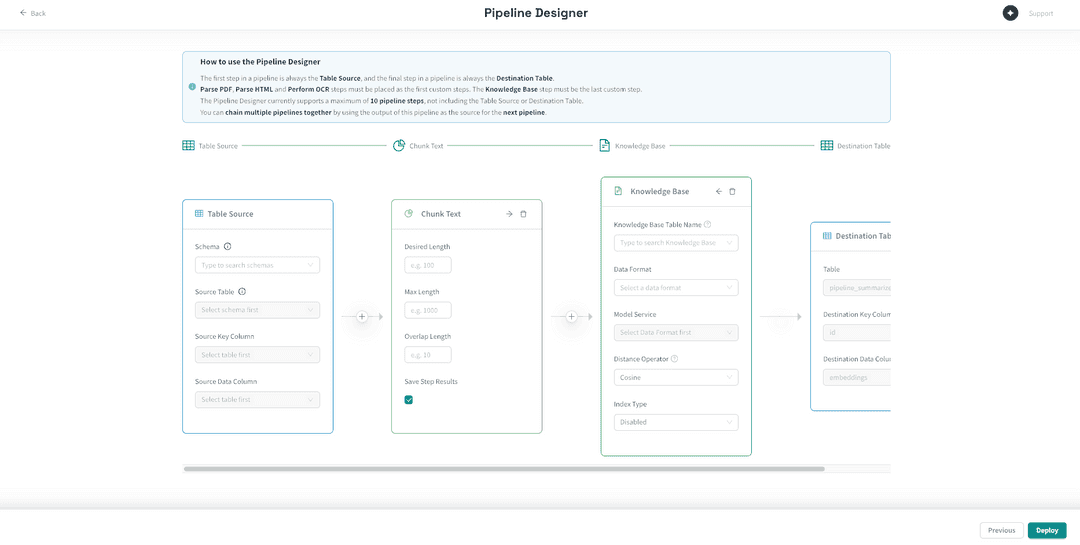
The step designer shows a visual pipeline with two fixed endpoints: a Table Source card on the left and a Destination Table card on the right. You build your pipeline by adding steps between these endpoints.
Configuring the source
Select the Table Source card.
Select the Schema containing your source table.
Select the Source Table to use as the pipeline source.
Select the Source Key Column: a column with unique values that identifies each row (typically a primary key or unique identifier).
Select the Source Data Column: the column containing the content to process (text, HTML, PDF bytes, or image bytes, depending on your first step).
Note
The visual_pipeline_user role must have access to the source table. In On Demand mode, it requires SELECT. In Live and Background modes, visual_pipeline_user must be granted the source table's owner role. If you encounter a permission error during pipeline creation, refer to VPU and permissions for the required permissions.
Adding steps
Select the + button on the arrow connecting two nodes in the pipeline.
Select a step type from the dropdown. Available step types depend on the position in the pipeline and the output type of the preceding step:
First step: ParsePDF, PerformOCR, PdfToImage, ParseHTML, ChunkText, SummarizeText, or KnowledgeBase (if it is the only step).
Middle steps: ParseHTML, ChunkText, SummarizeText (provided the preceding step produces text output), or PerformOCR (provided the preceding step produces binary image output).
Last step: Any compatible step. If you want vector storage, KnowledgeBase must be the last step.
Configure the step's parameters:
ChunkText: Set the desired chunk length (required) and optionally the maximum length.
SummarizeText: Select a text completion model from the model picker.
PerformOCR: Select an OCR model from the model picker.
KnowledgeBase: Optionally select an existing Knowledge Base Table Name to append data to an existing knowledge base (enabling multi-pipeline knowledge bases). Leave the field blank to create a new knowledge base. Choose the Data Format (Text or Image).
- When creating a new knowledge base, select a Model Service (embedding model) and optionally configure the Distance Operator and Index Type.
- When appending to an existing knowledge base, the model, distance operator, and index type are inherited from the existing knowledge base and aren't shown.
Repeat to add more steps, up to the 10-step maximum.
Each intermediate step has a Save Step Results toggle (enabled by default) that persists the step's output to a destination table, letting you inspect results at each stage. See Data flow and step results for details.
Managing step ordering
Pipeline Designer validates step ordering in real time. Invalid step placements are flagged visually. The rules are:
Steps consuming raw document input (ParsePDF, PdfToImage) must be the first step. PerformOCR accepts binary image input and can appear first or after a step that produces image output (such as PdfToImage).
KnowledgeBase must be the last step.
Each step's output type must match the next step's expected input type.
During pipeline creation, you can reorder steps using the left and right arrow controls on each step card, and remove steps by selecting the delete control. Once deployed, the step structure is fixed — see Managing a pipeline after deployment.
Selecting models
Steps that require a model (KnowledgeBase, SummarizeText, PerformOCR) display a model picker that lists all models registered in the AI Database (AIDB) model registry on the target database. The picker filters by function type (embedding, text completion, OCR) based on the step being configured. The picker presents a flat list of model names and doesn't categorize models by source (HM-hosted, external, or on-database).
Not all registered models are reachable from every cluster. HM-hosted and HM-proxied models require network connectivity to the primary location's model-serving endpoints, which is available by default only on primary-location clusters. Clusters on secondary locations or self-managed instances must use AIDB-native models (registered directly via SQL, calling an external provider) or built-in models (shipped with AIDB, running locally). See Executing pipelines: How models reach pipeline steps for the full model availability breakdown by deployment type.
Deploying the pipeline
Verify that all steps are configured and the pipeline is valid (no red indicators).
The destination table name defaults to
pipeline_{your_pipeline_name}. For pipelines ending with a KnowledgeBase step, this becomes the vector storage table.Select Deploy.
Pipeline Designer creates the pipeline, associated database objects (destination tables, triggers or background processing artifacts), and begins monitoring its status. The pipeline appears in the pipeline list with a "Creating" status that transitions to its operational status once setup is complete.
Creating a KnowledgeBase pipeline
Most pipelines end with a KnowledgeBase step, which is the standard pattern for building RAG-ready vector stores. When you deploy such a pipeline:
AIDB creates a vector table to store embeddings.
A knowledge base entry is registered in AIDB's knowledge base registry.
The knowledge base is available for consumption by downstream applications such as Agent Studio agents. Pipeline Designer's Knowledge Bases view provides a query interface for testing and validation.
To create a pipeline with a KnowledgeBase step:
Follow the wizard above.
Add a ChunkText step to split your source text into segments.
Add a KnowledgeBase step as the final step.
In the KnowledgeBase step, leave Knowledge Base Table Name blank to create a new knowledge base (or select an existing one to append to it). Select a text embedding model and set the data format to Text.
Deploy the pipeline.
Pipelines without a KnowledgeBase final step are also possible (for example, a pipeline that only chunks or summarizes text into a destination table), but are less common.
For PDF or image sources, add a ParsePDF or PerformOCR step before ChunkText to convert binary data to text.
Managing a pipeline after deployment
Once a pipeline is created:
Step structure is fixed. See Limitations: Steps cannot be modified after creation.
Processing parameters are editable. You can change the processing type, batch size, and sync interval by selecting Actions > Edit Pipeline Options from the pipeline detail page.
Manual execution is available via SQL. Regardless of the processing mode, you musts trigger a manual run by calling
SELECT aidb.run_pipeline('pipeline_name');on the pipeline's database. Pipeline Designer doesn't currently provide a UI button for manual execution.
Integrating with Agent Studio
Agent Studio is the flow-building interface for AI agents in EDB Postgres AI. Knowledge bases created through Pipeline Designer can serve as data sources for those agents: the Agent Studio KB component queries AIDB knowledge bases using the same vector retrieval mechanism as Pipeline Designer's built-in query tool. Agent Studio flows use user-configured database credentials, so the Postgres role configured in the flow must have access to the knowledge base's underlying tables. See Knowledge bases: Using knowledge bases with Agent Studio for permission details and the Agent Studio documentation for details on building agent flows.